
Silk Mobile
Table of Contents (Homepage)
- Overview
- Setting Up
- Getting Started
- How To
- Connecting Devices And Emulators
- Preparing Applications For Testing
- Managing Applications
- Recording Tests
- Working With Test Commands
- Adding Commands To Your Scripts
- Object Commands
- Click
- ClickCoordinate
- ClickIn
- ClickOffset
- Drag
- ElementGetProperty
- ElementGetTableRowsCount
- ElementListPick
- ElementListSelect
- ElementListVisible
- ElementScrollToTableRow
- ElementSendText
- ElementSetProperty
- ElementSwipe
- ElementSwipeWhileNotFound
- GetAllValues
- GetElementCount
- GetElementCountIn
- GetTextIn
- IsElementBlank
- IsElementFound
- IsFoundIn
- LongClick
- RunNativeAPICall
- SendWhileNotFound
- VerifyElementFound
- VerifyElementNotFound
- VerifyIn
- WaitForElement
- WaitForElementToVanish
- GetCoordinateColor
- DragDrop
- Application Commands
- Device Commands
- Web (Hybrid) Specific Commands
- Utilities Commands
- Monitoring Commands
- Configuration Commands
- ExtractLanguageFiles
- SetDefaultClickDownTime
- SetDefaultTimeOut
- SetDefaultWebView
- SetDragStartDelay
- SetInKeyDelay
- SetKeyToKeyDelay
- SetLanguage
- SetLanguagePropertiesFile
- SetShowImageInReport
- SetShowPassImageInReport
- SetShowReport
- SetSpeed
- SetThrowExceptionOnFail
- SetWebAutoScroll
- StartStepsGroup
- StopStepsGroup
- TextFilter
- Miscellaneous Commands
- Controlling Element Identification Rules
- Editing Test Objects
- Executing Test Scripts
- Report Of Executed Test
- Working From Code Environment
- Continuous Integration
- Layout Verification Tests
- Use Device Vitals Monitors
- Troubleshooting
- Terminology
Connecting A Windows Phone Device
With Silk Mobile , you can test applications running on real devices, such as a Windows Phone.
To do so follow the instructions below:
Step 1: Prerequisites
-
The operating system of your computer must be Windows 8.1. Working with emulators requires Windows 8.1 Professional (or above).
-
Visual Studio 2013 Premium or Ultimate edition with Windows Phone 8.1 SDK update 4 (or above) is required. It should be installed into its default location, i.e., C:\Program Files (x86)\Microsoft Visual Studio 12.0 .
-
The operating system of your Windows Phone devices must be 8.1.
Step 2: R egister the device for development - a developer account is necessary. You can find it in https://msdn.microsoft.com/en-us/library/windows/apps/xaml/dn614128.aspx.
Step 3: Have your application's XAP or APPX file on your computer.
Step 4: Prepare the application for testing -- you can see how to Instrument your application.
Note: For evaluation purposes, you can take advantage of our demo applications that have already been instrumented and can be found under the installation directory: <install dir>\bin\wp\sample.
Step 5: Connect the device through USB cable.
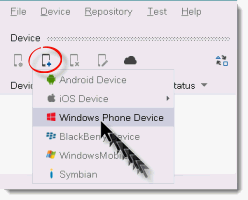
Step 6: Go to the "Device" tab in Silk Mobile , click the Add Device icon and select "Window Phone device” from the drop-down list.
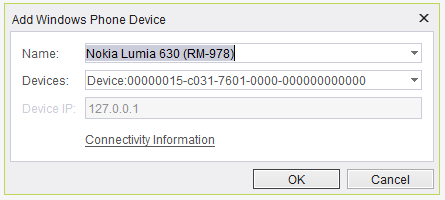
Step 7: A pop-up will appear and you will then see the Serial Number of the device. Confirm the name of the device, and click "OK".
Notes:
-
If the Windows Phone 8.1 device does not appear in the device list, verify that the 'ipoverusbsvc' service is up and running. If it is not, the user will be able to add WP8.1 emulators only (and only if they are available to him).
-
Should you use an emulator, you are advised to run Silk Mobile with administrative privileges (consider running <install_dir>\studioAdmin.exe) so that the IP address of the emulator could be discovered. Otherwise, you will have to fill in the 'Host' field with the IP address of the emulator (this is because in some network configurations, Silk Mobile will not be able to discover it while running in the regular mode) .
-
You cannot connect more than one physical Windows Phone device and more than one emulator at any given time. Nevertheless, you may have a physical device and an emulator simultaneously connected.
The selected device will appear in the "Device" tab.
Step 8: Install the tested application using the Application Manager:
-
S elect the tested Windows Phone device (or emulator) in the Device tab:
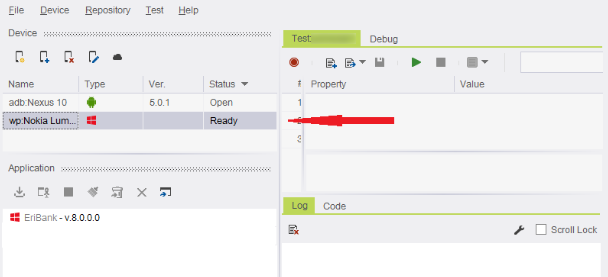
-
Click on icon ‘Import/Sign Application ’
 .
.
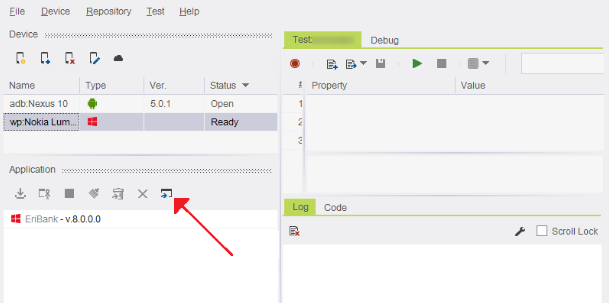
-
Choose the tested application and click on "Import":
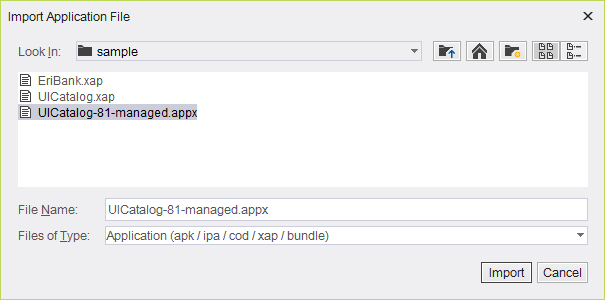
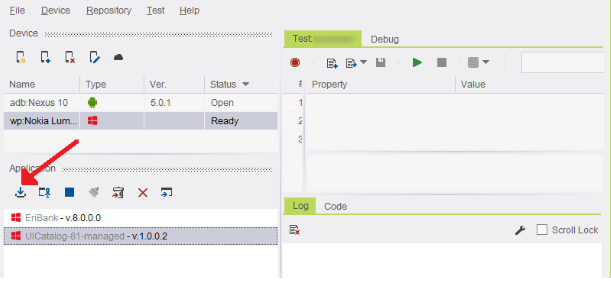
T he selected file will be imported and instrumented. This process may take between 60-180 seconds (sometimes even longer). The application will then appear in the applications list. -
Select the application in the application list and click on icon ‘Install Application’

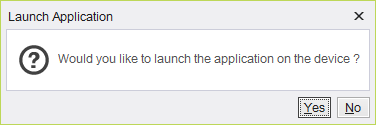
Step 9: Launch the tested application by pressing button “Yes” in the appeared confirmation box:
Step 10:
You can open a reflection window of the selected device’s screen by clicking on ‘Open Device’ icon
 .
.
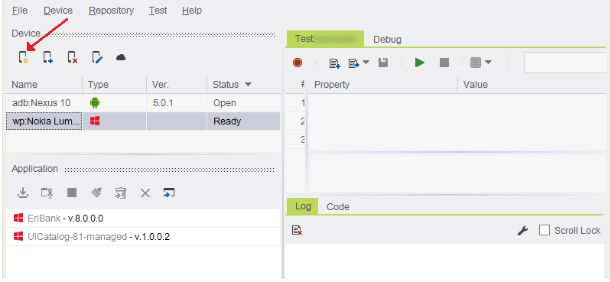
The reflection window should then appear then on your desktop with the application running in it:
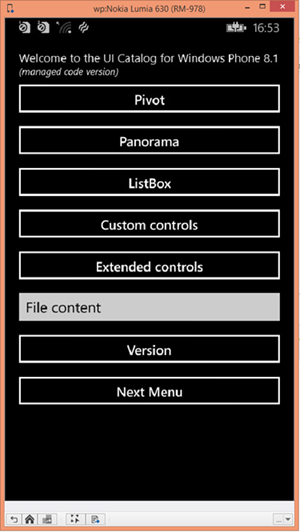
Notes:
-
The resolution of the reflection screen is set to 800x480 regardless to the actual resolution of the device (this is done in order to increase compatibility of your tests between different models of Windows Phones). However, we recommend not to constrain your tests to this constant resolution, as in future versions the resolution of the reflection screen may reflect the device’s actual resolution.
-
If anything does not properly work, go through all the Prerequisites (at the top of this page) and make sure you have read them and carried them out.